
Introduction
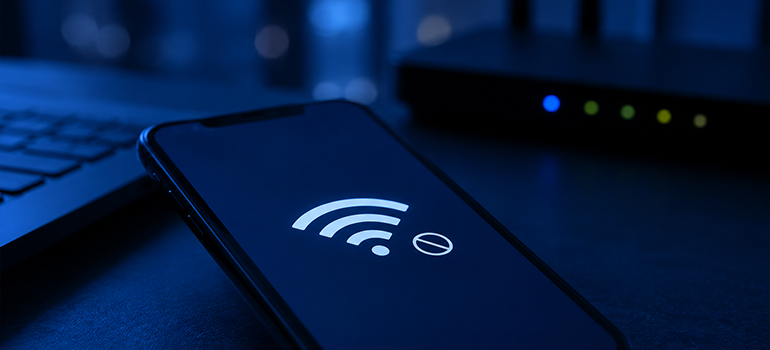
Have you ever connected to Wi-Fi on your smartphone or laptop and seen the message “connected without internet”, “Wi-Fi connected no internet access”, or simply “no internet access”? Although your device appears to be connected to Wi-Fi, nothing works, apps won’t refresh, websites fail to load, and streaming videos fail to play. This situation can be truly frustrating, when you are attending an online meeting, streaming videos, web browsing, and other online activities.
The message “Wi-Fi connected but no internet” means your device is connected to the Wi-Fi network, but no data connection. In other words, your device communicates with the router, but the router fails to access the internet. Fortunately, such Wi-Fi connectivity issues are often temporary and can be fixed within a few minutes.
In this blog, let us understand what connected without internet means, its possible causes, and solutions for achieving stable and reliable internet connectivity.
Connected without Internet- What does it Actually Mean?
When you see the message “connected without internet” or “Internet connected but not working”, it means,
- Your device is successfully connected to a Wi-Fi network.
- The device has received an IP address from the router, thereby establishing communication with the router.
- However, the router is unable to access the internet.
This is actually when the problem feels confusing. Your Wi-Fi signal appears strong and your device shows that it is connected to a network. Despite this, the Wi-Fi network doesn’t have active internet access. As a result, you won’t be able to perform internet-based activities.
Common Reasons for Wi-Fi with No Internet Access
1. Internet Service Disruption
One of the most common reasons for Wi-Fi with no internet access is the outage from your Internet Service Provider (ISP). In such a scenario, your Wi-Fi network works normally, but the router fails to access the internet.
Some common causes for ISP outages include:
- Fiber cable damage
- Technical failures
- Network congestion
- Weather conditions
In such cases, contacting customer support or checking your ISP’s service status is an ideal option to confirm the outage and know when the internet service is expected to be restored.
2. Router Issues
Since routers operate continuously, they may occasionally experience issues that affect internet connectivity, while the Wi-Fi remains active
Common router issues include:
- Hardware failures
- Overheating
- Running for a long time without a restart
- Software glitches/firmware bugs
These issues cause the internet connection to drop while the Wi-Fi network stays active.
3. Damaged or Loose Cables
If you use a fiber or broadband connection, physical cable issues can interrupt your internet connection, even when your Wi-Fi network appears working normally.
So, it is advisable to check:
- Ethernet cables
- Power adapters
- Coaxial cables
- Fiber connections
A loose or damaged cable connection is often overlooked, but it can be the root cause of the internet connectivity issues.
4. Incorrect Network Configuration
Sometimes, your device might receive incorrect network configuration settings, which include:
- Invalid IP address
- DNS configuration errors
- Incorrect default gateway
These issues can prevent you from accessing the internet despite showing availability of internet networks.
5. Too Many Devices Connected
When too many devices share a single router, it can affect your internet connection and overall network performance.
Common issues include:
- Bandwidth becomes limited
- Reduced router performance
- IP conflicts may arise
- Slower internet speeds
These issues may result in Wi-Fi with no internet access.
6. DNS Server Problems
The DNS (Domain Name System) translates website names into IP addresses, allowing browsers to locate and load websites. If the DNS servers fail, your device may remain connected to the Wi-Fi network, but be unable to access the internet.
Common signs of DNS server issues include:
- Apps stop working
- Internet appears unavailable
- Websites fail to load
How to Prevent This Issue?
Although occasional internet issues are unavoidable, you can reduce the chances of experiencing this problem by following these best practices.
- Restart your router at least once a week.
- Keep the firmware of the router up to date.
- Use a strong and secure Wi-Fi password.
- Place the router in an open, central location of your building for better internet coverage
- Regularly update your devices and their operating systems
- Use high-quality networking equipment (example: router and ethernet cable)
- Perform regular router maintenance
- Avoid placing the router near microwaves, cordless phones, or thick concrete walls, as they can interfere with Wi-Fi signals.
- Choose a reliable Internet Service Provider (ISP).
When to Contact your Internet Service Provider?
Contact your internet service provider, if:
- The internet indicator light on the router is red or off.
- Several users in your area are experiencing the same issue.
- The issue remains the same even after restarting the router
- You observe frequent internet connection disruptions despite having a strong, stable Wi-Fi connection.
Conclusion
Experiencing “Wi-Fi connected but no internet” can be frustrating and disruptive. Most of the time, this issue indicates a problem between your router and the internet, and not necessarily with your device. Fortunately, simple troubleshooting steps, such as a quick restart of the router, reconnecting to the Wi-Fi network, checking cable connections, or updating the network settings, can restore internet connectivity.
To reduce the chances of facing this issue in the future, keep your networking equipment up to date, router placement in an optimal location, and implement the preventive practices as discussed above. These simple measures will help you reduce the chances of encountering these issues in the future and enjoy a stable, reliable internet experience.


