
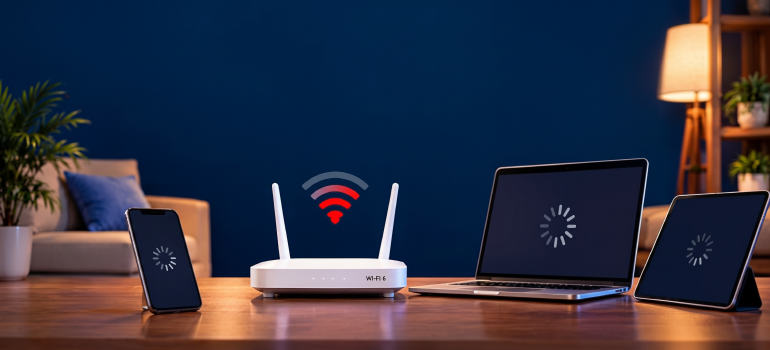
Your Wi-Fi router may have been working for years without much attention. But recently, you might have noticed frequent disconnections, slower speeds or the need to restart it more often.
These problems can be frustrating, especially when you depend on Wi-Fi for video calls, streaming, online classes and everyday browsing.
While occasional connectivity issues are normal, repeated problems may indicate that your router is ageing or no longer meeting your requirements.
Here are five signs you need to replace your Wi-Fi router, along with practical checks to help you decide whether a replacement is necessary.
How Do You Know If Your Wi-Fi Router Needs Replacing?
A Wi-Fi router may need replacing when it repeatedly fails to provide a stable connection, develops hardware problems, stops receiving security updates or cannot support your current devices and connectivity requirements.
However, a slow or unstable connection does not automatically mean the router is faulty.
Poor Wi-Fi coverage, interference, outdated device software, loose cables and internet service issues can cause similar symptoms.
The best approach is to identify whether the problem comes from the router before deciding to replace it.
5 Signs You May Need to Replace Your Wi-Fi Router
1. Frequent Disconnections and Unstable Wi-Fi
One of the common signs of a bad router is frequent connection drops.
Your phone may repeatedly disconnect from Wi-Fi, your laptop may lose connection during video calls, or several devices may struggle to stay connected.
Occasional disconnections can happen for different reasons. However, if the problem affects multiple devices and continues after basic troubleshooting, the router may require closer attention.
What to check:
- Test whether multiple devices experience the same issue.
- Move closer to the router to rule out weak Wi-Fi coverage.
- Restart the router and check whether the problem returns.
- Check for loose cables and internet service interruptions.
If disconnections continue across several devices even when the Wi-Fi signal is strong, the router could be one possible cause.
2. Slow Wi-Fi Even After Basic Troubleshooting
A router that struggles to handle your current connectivity requirements may contribute to slow wireless performance.
For example, an older router may support fewer wireless features or have limited capacity compared with newer equipment.
However, slow Wi-Fi does not always mean your router is failing.
Distance, interference, connected devices, network congestion and broadband speed can all affect performance.
What to check:
Compare Wi-Fi performance close to the router and farther away. If possible, also test the connection using a wired Ethernet connection.
If the wired connection performs normally but Wi-Fi remains consistently poor near the router, investigate the router’s wireless settings, capabilities and condition.
If both wired and wireless connections are slow, the issue may involve the broadband connection or other networking equipment.
A replacement becomes worth considering when the router’s technical limitations are confirmed and cannot meet your current needs.
3. Router Frequently Freezes or Restarts
Does your router stop responding until you switch it off and on again?
An occasional restart may resolve temporary software problems. However, frequent freezing, unexpected reboots or repeated failures to respond can indicate a more serious issue.
Possible causes include firmware problems, overheating, power adapter faults or failing hardware.
What to check:
- Ensure the router has adequate ventilation.
- Check whether the power adapter and cable are functioning properly.
- Look for firmware updates from the manufacturer.
- Observe whether the router restarts unexpectedly.
If the router becomes unusually hot, produces a burning smell or shows visible damage, stop using it and seek professional assistance.
When repeated freezing continues after appropriate troubleshooting, replacing the router may be more practical than repeatedly restarting it.
4. Router No Longer Receives Security Updates
Wi-Fi routers use firmware to manage network connections, wireless security and other functions.
Manufacturers may release firmware updates to fix bugs, improve compatibility and address security vulnerabilities.
When a router reaches the end of its support period, it may stop receiving important security updates.
This does not necessarily mean the router will immediately stop working. However, unsupported equipment may become increasingly difficult to keep secure.
Older routers may also lack support for current wireless security options.
What to check:
Find your router’s model number and visit the manufacturer’s official support website.
Check whether firmware updates are still available and whether the model remains supported.
If the router no longer receives security fixes or cannot support suitable wireless security settings, replacing it is worth considering.
5. Router Cannot Support Your Current Connectivity Needs
A router may still function correctly but no longer be suitable for the way you use the internet.
For example, you may have added more phones, laptops, smart televisions and connected devices since the router was installed.
You may also have upgraded your broadband connection while continuing to use an older router with limited wireless or wired networking capabilities.
This does not automatically mean that adding devices requires a new router. The actual requirement depends on your equipment and usage.
What to check:
Review the router’s supported Wi-Fi standard, frequency bands, Ethernet port capabilities and other relevant specifications.
Compare these with your current devices, broadband connection and usage requirements.
If the router’s hardware limitations are preventing you from using your connection effectively, upgrading may be reasonable.
How to Check Whether Your Router Is the Problem
Before replacing your router, perform these 5 simple checks to identify the source of the issue.
- Test multiple devices.
If only one phone or laptop has connection problems while other devices work normally, investigate that device first.
If several devices experience the same issue, check the router and broadband connection.
- Restart the router.
A restart can resolve temporary connectivity problems.
If you are unsure about the process, BBNL’s guide on how to reboot your router explains the steps and the situations where restarting may help.
- Check the router’s placement.
A router placed inside a cabinet, behind large furniture or far from connected devices may provide poor wireless coverage.
Try testing Wi-Fi close to the router before assuming the equipment is faulty.
- Compare wired and wireless connections.
Where supported, test a laptop or computer using an Ethernet connection.
This can help distinguish a wireless coverage or performance issue from a broader connectivity problem.
- Check firmware and equipment condition.
Look for available firmware updates, damaged cables, unusual indicator lights, excessive heat or unexpected restarts.
If problems continue after these checks, contact the router manufacturer or internet service provider for further diagnosis.
How Long Does a Wi-Fi Router Last?
There is no fixed lifespan that applies to every Wi-Fi router.
A router’s useful life depends on its hardware quality, operating conditions, manufacturer support, usage and changing connectivity requirements.
Some routers continue functioning reliably for several years. Others may develop problems earlier.
Age alone is therefore not a reliable reason to replace a router.
Instead, consider three questions:
- Does the router still provide stable connectivity?
- Does it continue receiving relevant security updates?
- Can it support your current devices and internet requirements?
If the answers are yes, replacing the router simply because it is several years old may not be necessary.
If the router is unsupported, unreliable or technically inadequate, replacement may be appropriate.
What to Consider Before Replacing Your Router
Once you have confirmed that a replacement is necessary, choose equipment based on your actual requirements rather than assuming the newest or most expensive model is automatically better.
Consider the following factors.
Wi-Fi compatibility: Check which wireless standards and frequency bands your devices support.
Broadband connection: Make sure the router’s networking capabilities are suitable for your internet connection.
Coverage requirements: Consider the number of rooms, walls and floors. A larger space may benefit from additional access points or mesh Wi-Fi rather than relying on one router.
Security support: Look for suitable wireless security features and an active manufacturer update policy.
Device requirements: Consider the types of devices connected and how they are used.
ISP compatibility: If your existing equipment was supplied or configured by your internet service provider, confirm the replacement process before disconnecting it.
For fibre connections, the router and optical network terminal may be separate devices or combined into one unit. Replacing provider-managed fibre equipment without confirming compatibility can interrupt the connection.
Conclusion
Recognising the signs you need to replace your Wi-Fi router can help you avoid repeated connectivity problems and unnecessary equipment purchases.
Frequent disconnections, consistently poor wireless performance, repeated freezing, missing security updates and hardware limitations are all reasons to investigate your router’s condition.
However, these signs do not always mean the router is faulty.
Start with basic troubleshooting, check whether multiple devices are affected and rule out broadband or coverage problems.
If the router continues to fail, no longer receives essential security support or cannot meet your connectivity requirements, replacing it may be the right decision.


