
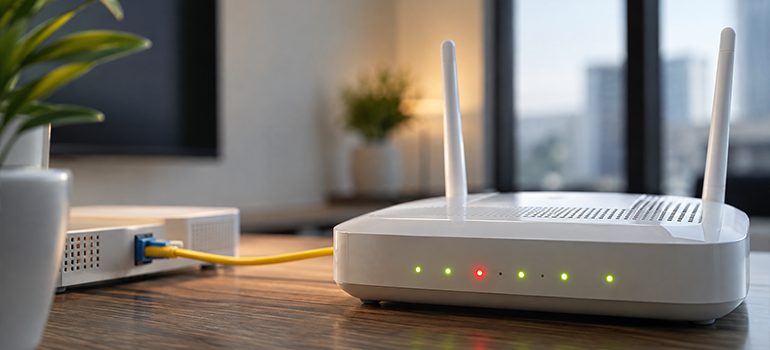
Your Wi-Fi suddenly stops working. You check the router or fibre device and notice a red light marked LOS, perhaps blinking continuously. What does it mean?
The LOS meaning in Wi-Fi is commonly misunderstood. LOS stands for Loss of Signal. On fibre broadband equipment such as an ONT or fibre router, a red or blinking LOS light generally means that the device is not receiving the expected optical signal, or the received signal is too weak.
This is different from having a weak Wi-Fi signal on your phone or laptop. Let us understand what LOS means, why it happens, and what you can safely check before contacting your internet service provider.
What Is LOS in Wi-Fi?
If you are searching for what LOS is in Wi-Fi, the simple answer is
LOS stands for Loss of Signal.
India’s Telecommunication Engineering Centre also identifies LOS as “Loss of signal” in its GPON technical documentation.
On a fibre connection, an Optical Network Terminal, or ONT, receives the optical signal coming through the fibre network. Some installations may use a device that combines fibre termination and routing functions, which is why users often describe the LOS indicator as being on their “Wi-Fi router” or “Wi-Fi modem.”
When the device cannot receive the expected optical signal correctly, its LOS indicator may turn red or start blinking. The exact behavior and color of indicator lights can vary by manufacturer and model. For example, TP-Link documentation states that a flashing red LOS indicator on certain GPON products means no optical signal is being received or that the received signal is too weak. Huawei documentation similarly shows LOS states associated with an ONT not receiving an optical signal.
What Does a Red or Blinking LOS Light Mean?
A LOS light in the red or blinking state usually indicates an issue with the optical connection rather than the wireless connection between your device and router.
In simple terms, think of the fibre connection as the path bringing internet service to your premises. Your Wi-Fi then distributes that connection wirelessly to devices such as phones, laptops, and TVs.
If the fibre equipment loses the incoming optical signal, your Wi-Fi network may still appear on your phone, but internet access may not work.
This explains why seeing Wi-Fi bars does not necessarily mean that the internet connection itself is active.
Common Causes of LOS in a Wi-Fi Router
Several issues can cause LOS in a Wi-Fi router or fibre ONT.
- Loose fibre connection: A fibre connector that is not seated correctly may interrupt the optical signal.
- Bent or damaged fibre cable: Fibre cables require careful handling. Sharp bends, crushing or physical damage can affect the optical connection.
- Signal loss on the fibre line: The device may not be receiving sufficient optical signal from the network. Manufacturer documentation recognises missing or weak optical signals as a cause of a flashing LOS indicator.
- Service-side fibre issue: A fault somewhere along the provider’s fibre network can also result in loss of signal. Huawei’s GPON documentation, for example, identifies disconnected or broken fibre and failure to detect the expected optical signal as LOS conditions.
- Equipment or hardware issue: In some cases, abnormal indicator behavior can be related to equipment problems. The exact meaning depends on the device, so its manual or ISP guidance should be checked.
How to Fix the LOS Red Light on a Router
If you want to know how to fix the LOS red light on the router, start with basic checks. Avoid opening, repairing or modifying fibre equipment yourself.
1. Restart the Router or ONT.
Turn the equipment off using its normal power control, wait briefly, and switch it back on. Give the device time to restart and reconnect.
A restart can clear some temporary connectivity problems. If the LOS light remains red or continues blinking after the equipment has restarted, continue with the basic checks below.
If you are unsure about the correct process, follow this guide on how to reboot your router.
2. Check the Fibre Cable Connection
Check whether the fibre cable appears securely connected to the equipment.
Do not repeatedly disconnect fibre connectors or touch exposed connector ends. Fibre connections are more delicate than ordinary Ethernet cables, and fibre equipment should be handled according to the provider or equipment manufacturer’s instructions.
3. Look for Bends or Visible Cable Damage
Follow the visible section of the fibre cable and check for obvious problems. Look for:
- Sharp bends or kinks
- A crushed section of cable
- A loose connection
- Visible physical damage
Do not attempt to splice or repair a damaged fibre cable yourself. If you notice damage, contact your service provider.
4. Check Whether the Issue Affects All Devices
Try accessing the internet from another phone, laptop, or connected device.
If only one device has a problem while others work normally, the issue is less likely to be a true fibre LOS problem. If internet access is unavailable across devices and the fibre equipment is showing LOS, the incoming connection deserves attention.
5. Check for a Service-Side Problem
If the equipment and visible cable appear normal, the issue may be outside your premises.
This can include a problem elsewhere along the fibre connection or provider network. Such faults normally require diagnosis by the internet service provider rather than changes to your Wi-Fi settings.
6. Contact Your Internet Service Provider
If the LOS light blinking in the router continues after basic checks and a restart, contact your ISP. Tell the support team:
- Whether the LOS light is solid or blinking
- When the connection stopped working
- Whether all connected devices are affected
- Whether you restarted the equipment
- Whether you noticed visible cable damage
These details can make troubleshooting easier.
LOS Light vs. Wi-Fi Signal Problem
LOS and weak Wi-Fi are not the same problem.
A LOS warning concerns the incoming optical signal on fibre equipment. A Wi-Fi signal problem concerns the wireless connection between your router or access point and your device.
For example, if Wi-Fi becomes weak when you move farther from the router but works when you move closer, that points more towards wireless coverage. If the fibre equipment shows a red or blinking LOS indicator and internet access is unavailable across devices, the optical connection may be the issue.
Understanding this difference can prevent unnecessary changes to Wi-Fi passwords, device settings, or router placement when the actual problem is on the fibre side.
When Should You Contact Your ISP?
Contact your internet service provider when the LOS indicator remains red or blinking after the equipment has restarted, especially if internet access is unavailable on all connected devices.
- You should also seek assistance if:
- The fibre cable appears damaged
- The problem keeps returning
- The LOS indicator does not return to its normal state
- Basic checks do not restore the connection
The precise meaning of LED patterns varies between equipment models, so your ISP or the manufacturer’s documentation can provide device-specific guidance.
Conclusion
The LOS full form in Wi-Fi is Loss of Signal. On fibre broadband equipment, a red or blinking LOS light generally indicates that the expected optical signal is missing or too weak. It is not simply another name for poor Wi-Fi coverage.
Start with safe checks such as restarting the equipment, checking the visible fibre connection, and confirming whether all devices have lost internet access. If the LOS warning remains, contact your internet service provider rather than attempting to repair the fibre connection yourself.
Knowing the difference between an optical LOS problem and an ordinary Wi-Fi issue can help you explain the problem more clearly and take the right troubleshooting steps.


